Clean a Painting Controls, HUD & Comfort Settings
PC and mobile inputs for crates, workshop cleaning, and gallery hangs.
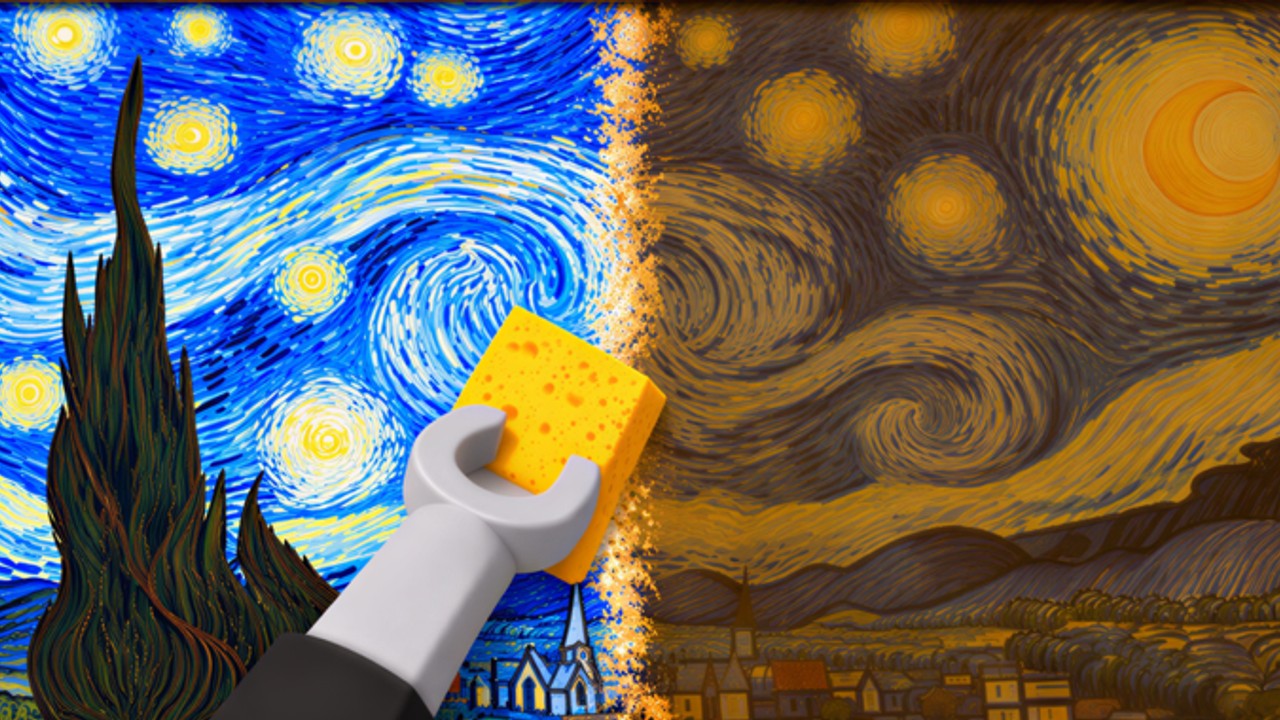
Clean a Painting uses familiar Roblox movement, but the feel of the game lives in small prompts: buy a crate, scrub a canvas, hang a piece, collect a sale. Messy inputs create messy restores - and messy restores sell for less. This page is the controls and HUD field guide for PC and mobile players who want fewer misclicks and cleaner sessions.
Pair it with the broader Players Hub for etiquette and session rhythm, and with Getting Started for the three-location map.
Core actions you must bind in your hands
Regardless of device, every profitable loop uses the same verbs:
- Move between Crates, Workshop, and Gallery until the path is automatic.
- Buy / unpack at crates when you have cash and workshop time.
- Clean thoroughly in the workshop (quality raises price).
- Hang finished art on a free gallery slot.
- Collect sales, offline earnings, index rewards, and the group chest when prompts appear (Upgrades Guide).
If any verb feels awkward on your device, fix that before chasing crate tiers on the Tier List.
PC controls
- WASD - travel. Practice a full Crates to Workshop to Gallery lap with no purchases until the route is boring.
- Mouse look - aim at prompts and canvas details. Slow the camera if scrubbing edges feels jittery.
- Left click / interact - confirm buys, cleaning tools, hang actions, and collect buttons. Watch for stacked prompts near busy stations on 8-player servers.
- Free mouse / UI toggle (common Roblox key, often Left Alt or a similar bind depending on settings) - required when Shop, Upgrades, Codes, or index panels capture the cursor. Future code entry steps are documented on How to Redeem Codes.
- Escape - close menus that block movement. Do not leave a menu open while you think you are still scrubbing.
PC comfort tips:
- Raise or lower mouse sensitivity until fine varnish strokes feel controllable.
- Use a stable framerate; input lag looks identical to “bad cleaning” and tanks sale quality.
- Keep chat unfocused while restoring so Enter does not yank you into typing mid-scrub.
- Second monitor for Updates or group shouts is fine - just do not AFK-block a hang spot while tabbed out.
Mobile controls
- Thumbstick - movement. Prefer landscape orientation so the canvas and prompts share the screen.
- Tap prompts - buy, clean, hang, collect. Take an extra beat to confirm you tapped the right billboard when players crowd a station.
- Camera drag - re-angle before detailed cleaning; accidental camera flicks create missed patches.
- Paste over type for any future codes - autocorrect destroys promo strings. None are active as of 16 November 2026 (Codes).
Mobile comfort tips:
- Clean with cooler hands and lower brightness if the device softens under load; thermal throttling adds delay.
- Consider a simple trigger grip or case edge so your thumb does not smear the scrub area.
- When menus feel tiny, open them standing still in a safe corner, not in a doorway.
- If Instant Clean style automation tempts you because touch precision is rough, read Scripts warnings first and keep experiments on an alt.
Gamepad notes
Controllers work for travel but often struggle with precise workshop work:
- Expect to free the virtual cursor for UI panels.
- Rebind look sensitivity if the stick overshoots canvas edges.
- Many players restore on PC or mobile, then only use a pad for casual gallery walks.
Trust on-screen prompts after patches; button icons can change even when the loop stays the same.
HUD literacy
Learn where your build stores:
- Cash and basic stats
- Shop / upgrades entry (Upgrades, Tier List)
- Painting index / rewards claims
- Group chest claim affordances after joining AURA NUKE
- Any Codes button when strings eventually ship
A strong spawn HUD check takes under a minute: collect offline, claim chest, claim index, note empty walls, then move. That ritual belongs in muscle memory beside WASD.
Workshop comfort settings
Restoration quality is a control problem as much as a knowledge problem (Restoration Tips):
- Stand at a distance where the full problem area is visible without constant camera resets.
- Finish edges and corners before declaring a piece done.
- If chat drama spikes, mute and return to the canvas - rushed taps show up in the sale price.
- Take a ten-second shake-out between paintings; repetitive scrubbing is real physical input on both mouse and touch.
Gallery interaction tips
- Approach hang slots from a clear angle so the prompt is unambiguous.
- Confirm the piece is on the wall before you sprint back to crates.
- Clear sold states promptly so the next hang prompt appears (Gallery Guide).
- Never camp the only accessible hang point on a busy server - etiquette notes live on Players.
Settings worth checking in Roblox menus
- Camera mode and sensitivity - critical for scrubbing.
- Graphics level - lower if frame pacing hurts timing; raise if you cannot see dirt contrast.
- UI scale (when available) - helps mobile and high-DPI screens hit prompts accurately.
- Privacy / party - useful during community-reported admin parties when servers get noisy.
Exact Roblox menu labels vary by app version; change one setting at a time so you know what helped.
Controls myths
- “Secrets glitches are advanced controls training.” No - parkour into restricted spaces does not teach sale-winning scrub habits (Secrets).
- “Any click cleans enough.” Thoroughness matters more than click count.
- “Mobile cannot compete.” Landscape plus patience competes fine; empty walls do not.
Related pages
- Players Hub - session design and etiquette
- Getting Started - first-hour loop
- Restoration Tips - quality habits
- Make Money Fast - dual pipeline while controls feel natural
- Links Hub - official play URL
Dial in movement and prompts until the route is boring. Boring controls are how careful restorations - and better payouts - actually happen.
Frequently Asked Questions
Quick answers about crates, restoration, and the gallery.
What are the basic Clean a Painting controls on PC?
WASD to move, mouse to look and click prompts for buying, cleaning, hanging, and collecting. Free the mouse when shop or rewards menus open.
How should I play on mobile?
Use landscape, move with the thumbstick, and tap prompts carefully. Paste codes later instead of typing, and watch for thermal lag during long scrub sessions.
Why do my cleans feel inaccurate?
Usually sensitivity, framerate, or camera distance. Stabilize performance, adjust look speed, and finish edges before you leave the workshop.
What should I check on the HUD when I spawn?
Collect offline earnings, claim group chest and painting index rewards if ready, then note empty gallery walls before buying new crates.
Do I need a gamepad?
No. PC and mobile are enough. Gamepads are optional and often worse for precise restoration work.
Where do I learn the full player session routine?
See the Players Hub for rhythm and etiquette, then return here whenever inputs feel like the bottleneck.